
April 8-15, 2020
New Features
Close Tour Stop Gallery when Selecting a Stop
-
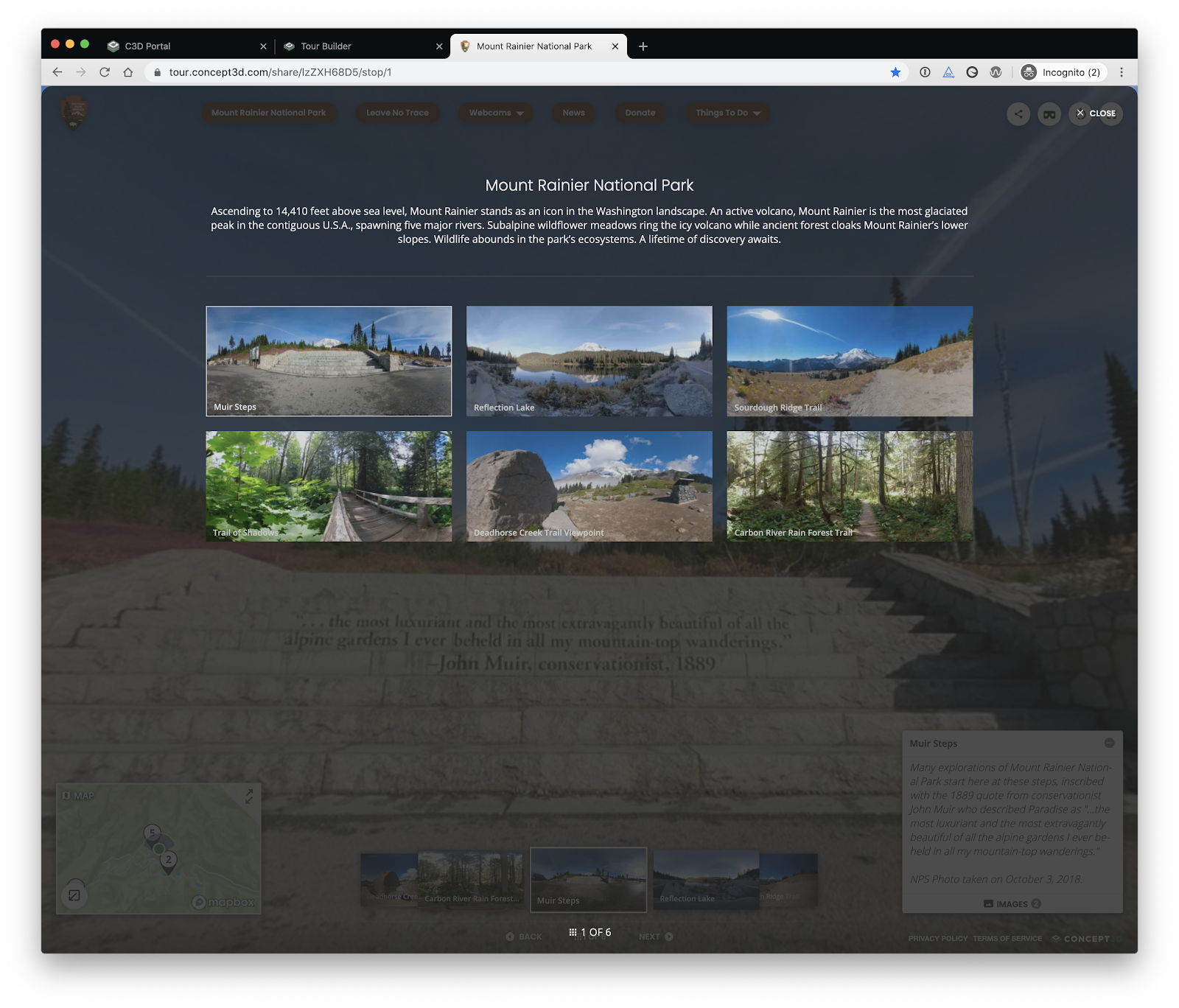
Description: Previously, the Tour Stop Gallery would remain open, even after a 360° Tour user clicked on one of the stops in the gallery. This added an extra click the user would have to do before they could then access the tour stop they selected. Now, the gallery drops and exits when the user selects a tour stop, streamlining the user experience.
The Tour Stop Gallery that now closes when a stop is selected.
Description and Buttons Display Updates for 360° Tours
-
Description: There are a few moving parts in 360° Tours on mobile devices. The sidebar menu, description area, and Tour Stop Gallery are just a few of the elements that can pop in and out of a user’s experience on a phone. These elements sometimes would overlap or not with other UI elements like the panorama control buttons. These overlaps have been cleaned up such that whatever the user opened last takes precedence.
Update Privacy Policy, Terms of Service, and Mapbox Attribution Links in Tour Builder and 360 Tour
-
Description: All Terms of Service, Privacy Policy, and Mapbox attribution links in both Tour Builder and 360° Tours have been updated. Concept3D has moved our Terms of Service and Privacy Policy to our main website Concept3D.com.
360° Tours Works on iPhones Chrome Browser
-
Description: 360° Tours are now compatible with Chrome on iOS devices.
Deleting from Media Library Updates & Refresh Button
-
Description: We made multiple updates to deleting media. Now, before users can delete media from the media library, they have to delete the media from every tour stop it is used on. We provide a badge to alert them the media is in use and a new prompt to help guide them through that process.
- Additionally, a new refresh button has been created. This allows users to refresh the current media tab in the event an error occurs while opening the media. This will give them the most up to date list.
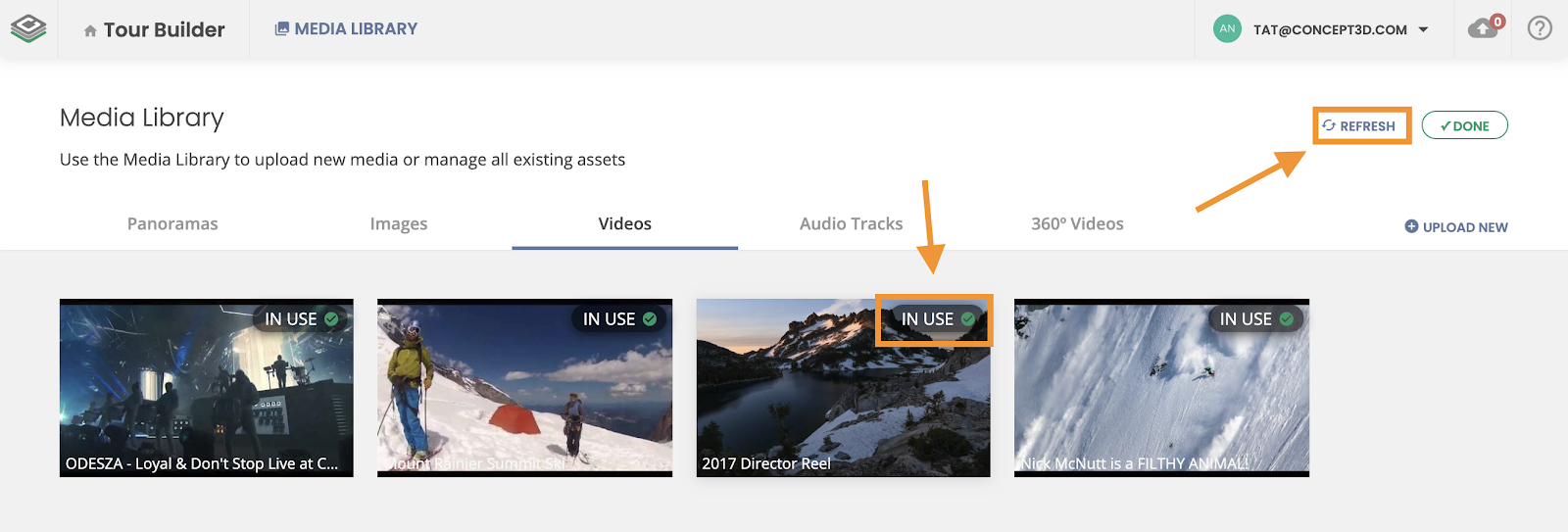
The new refresh button and In Use badge in the Media Library.
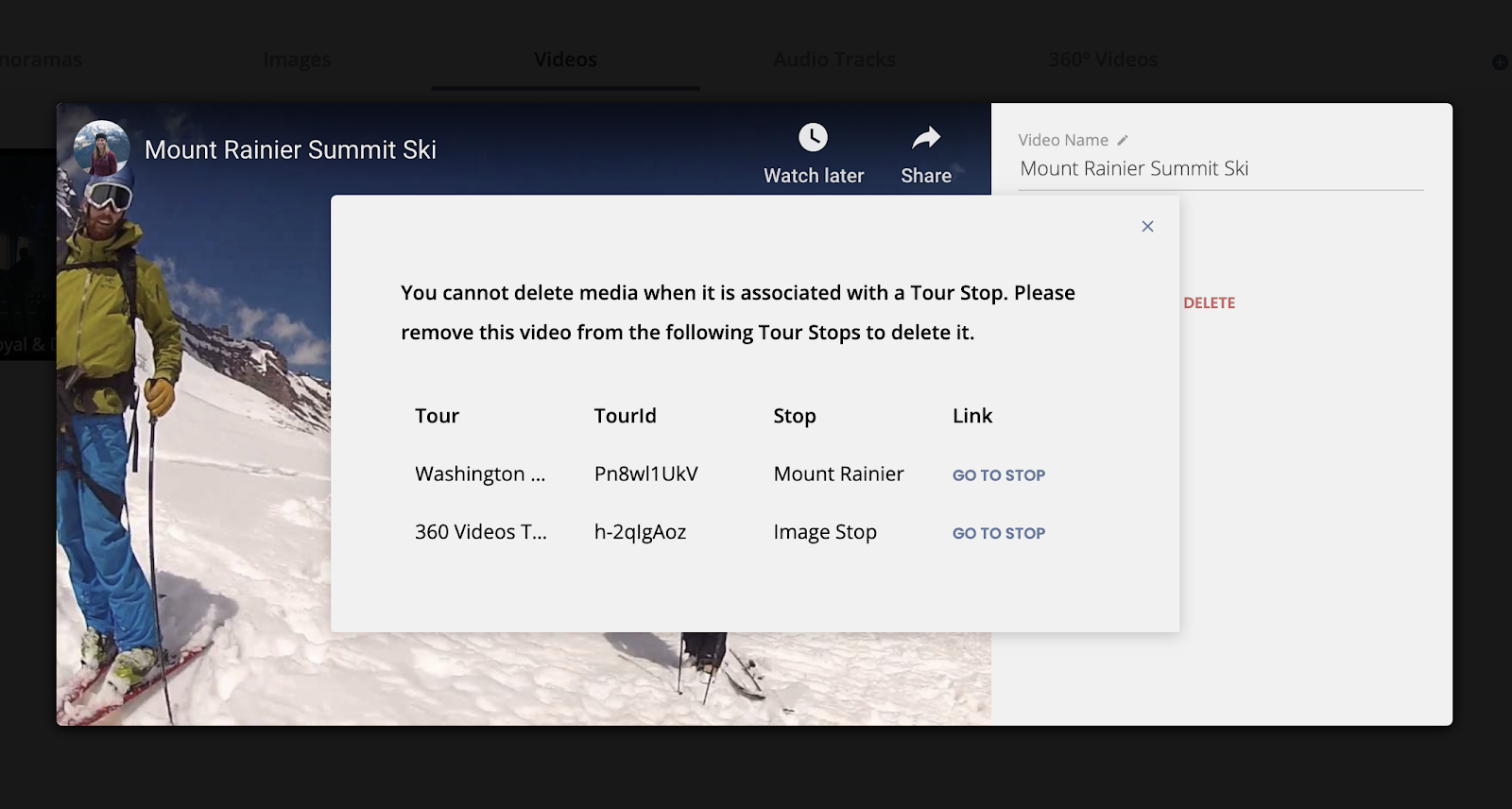
The alert that appears when Tour Builder users attempt to delete media that is in use on a Tour Stop.
Other Updates
Various Bug Fixes
_____________________________________
May 27th,2020
New Features
Hotspots for 360º Tours (Beta)
The long-awaited hotspot release is live! Below is a list of feature aspects and functionality that was released with Hotspots!
Add Hotspots to Any Main Media Type
-
The best performance today is on Panoramas, closely followed by 360º Video.
-
Static images, while compatible, need some improvement to the user experience.
Hotspot Editor:
-
To create new hotspots, the feature must be enabled by Concept3D.
-
Once enabled a new button displays under the main media for the stop. Select this button to enter the Tour Editor!

Hotspot Placement
-
To place a hotspot on a panorama or 360º video, you drag the panorama around until the white circle in the center of the screen is placed where you would like it.
-
To place a hotspot on a still image, you click and drag the circle with your mouse.
-
To finalize the position, select the “set position” position and save your hotspot.
Different Hotspot Types: There are currently 5 different hotspot types
1. Link: We use the link term for any hotspot that links you away for the current stop/hotspot
- External Site: Go to any external website. Will open in a new tab.
- Another Tour Stop: Link to another stop within the tour.
2. Text: Text hotspots are plain text content. Right now there is only one size text box, it does not dynamically change. Below are examples of the styles that can be done within the text hotspot.

3. Video: Any Youtube or Vimeo video can be updated or selected from the media library. This is the only hotspot type that currently opens “out of world”. Meaning when the user selects play, they get a pop up to watch the video. They do not stay in the spinnable panoramas as the video plays.
4. Image: Upload an image or add an image from the media library. Alternative text is required when uploading a new image. Look for this to happen with general image uploads soon as well.
5. Audio: Attach an audio file and transcript to a hotspot.
Other styling and important information
Dark/Light Styling can be applied to any hotspot. The default is light. Making a hotspot dark results in both the hotspot text and the box itself will be black instead of white.
Publish Updates: With the addition of all of these hotspots, a lot of changes had to be made to the publishing workflow. For example, every time you make a new hotspot - we need the tour to require a publish so that change can be visible on the live 360º Tour.
Media Library Updates: The “In Use” badge and deletion protections will apply to media used in hotspots as well. When trying to delete media that is in use, it will let you know if it is being used in a stop or hotspot.

Google Analytics :
All of the different hotspot types have google analytics events in place for them!
| Trigger | Event Category | Event Action | Event Label |
| Select An Image Hotspot To Open the HotSpot | {tour Id}--{Tour Name} | Hotspot(Image)- Open | {HotSpot Name} |
Comments
0 comments
Please sign in to leave a comment.